


Smart Printer: Print Documents
3.92.28K Reviews
App Specs
- Version
- 1.5.0
- Updated On
- License
- Free
- Downloads
- 10,000,000+
- Developer
- Rhythmix OU
- Categories
- Tools
- Platform
- Android, iOS
Screenshots
 Analysis by AppCompare
For me, the key question with a mobile printing app is not whether it can send a file to a printer, but whether it makes the whole job less fiddly when I’m away from a computer. That means getting the right document, checking the pages, and avoiding a wasted print. Smart Printer: Print Documents aims to bring those steps together on a phone, which is appealing when a printer is nearby but a laptop isn’t.
I’d judge it by the kind of printing I actually do. If I regularly need paper copies of PDFs, photos, or work documents, a dedicated tool can be more convenient than moving files to a computer first. If I print only once in a while, or rely on a printer’s own companion app for a narrow set of tasks, another app may be enough. The important difference is whether the mobile workflow feels useful for my mix of files, rather than simply offering a long feature list.
Who benefits most from a phone-first workflow
This is most attractive to people who already keep documents on their phone or in cloud storage: students preparing class materials, families printing forms, and workers who need a copy of a document while travelling between home and an office. I’d also consider it for shared household use, where one person receives a file and someone else needs to print it without transferring it to a computer.
A practical example is a form sent by email the evening before an appointment. I could open the attachment on my phone, check the pages, and send it to a nearby printer instead of forwarding it to myself and finding a laptop. That convenience matters most when the file is already digital and the printer is set up. It won’t solve a printer that is out of paper, disconnected, or producing poor output; the app is a bridge to printing, not a repair tool.
What to check before relying on it
Before printing something important, I’d test the connection with a low-stakes page and inspect the preview for clipped text, unexpected page breaks, or an orientation that doesn’t suit the document. A phone screen can make a layout problem easy to miss, especially in a form with small fields. For a long document, choosing only the pages I need is a simple way to limit paper use and catch mistakes before they become a stack of unwanted copies.
It is also worth separating app-side control from printer-side capability. A setting such as double-sided printing is useful only when the printer supports it, and the final result can depend on the model and its setup. I would treat the available options as a way to request the print job, not as a guarantee that every printer will handle every choice identically. A quick test is sensible when page order or a particular layout matters.
Setting Up and Getting Started
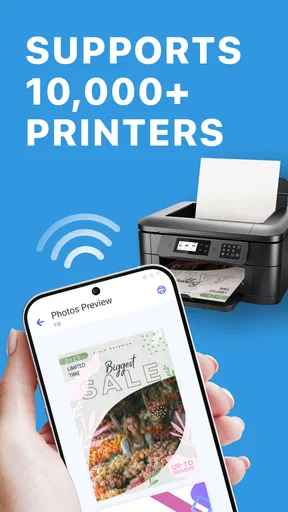
First off, let’s talk setup. The Smart Printer: Print Documents app is available for both Android and iOS, and getting it up and running was a breeze. After downloading the app, I was prompted to connect it to my Wi-Fi printer. The app supports a myriad of printers, so chances are, yours is compatible. Connecting took less than five minutes, which is perfect if you're in a rush.
Worth Reading Before You Choose

Baby Panda World Brings Quick Play to Modern Phones, but Its Game Library Feels Busy

ESPN’s Live Game View Makes Following Close Games Easier

QuizzLand Review: A Good Fit for Short Trivia Breaks, Not Every Player

Basketball Stars: Multiplayer Is Fast, but Can It Recover When Matches Go Wrong?

WEBTOON Turns Phone Updates Into a Better Reading Routine

Link to Windows Runs on Shared Habits, Not Social Feeds
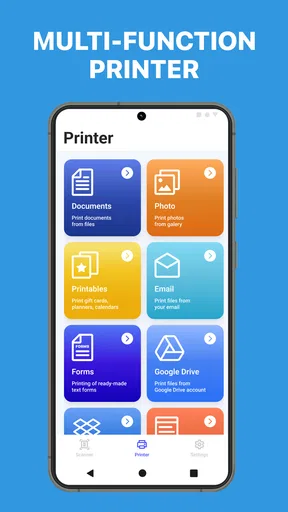
The user interface is clean and intuitive, which is always a win in my book. From the main screen, you can quickly access recent documents, and the app even integrates seamlessly with cloud storage services like Google Drive and Dropbox. It’s super convenient for those of us who juggle files across different platforms.
Features That Stand Out
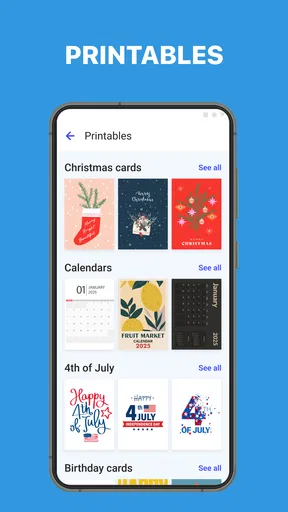
Now, onto the fun stuff—features! The app isn’t just about printing; it’s about making printing smarter. For starters, you can print directly from your phone's camera roll, emails, or any cloud storage app. Plus, the file types it supports are extensive—PDFs, Word documents, images, you name it.
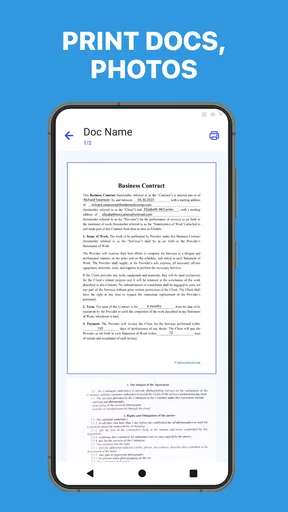
Another feature that I found incredibly handy is the ability to adjust print settings. Whether you need black and white, double-sided printing, or specific page ranges, it’s all at your fingertips. There’s even an option to preview your documents before hitting that print button, which saves paper and prevents those "Oops, I didn't mean to print that!" moments.
Printing Quality and Reliability
Quality-wise, the prints came out crisp and clear, which was honestly a relief. No weird smudges or lines, just good quality prints that I’d be happy to pass around in a meeting or slap on the fridge. The printing speed was also impressive. I didn’t have to wait around forever, which, let’s face it, is a big plus, especially when you’re printing a hefty document.
For a useful comparison, I see Smart Printer as a general-purpose option rather than a replacement for every printer utility. A manufacturer’s companion app can be the better choice when I need model-specific maintenance or controls tied closely to one printer. A computer remains preferable for detailed layout work, bulk jobs, or documents that need careful formatting. The phone-first advantage is strongest for ordinary files and quick tasks, where opening, previewing, and printing in one place saves a handoff.
Little Extras That Make a Big Difference
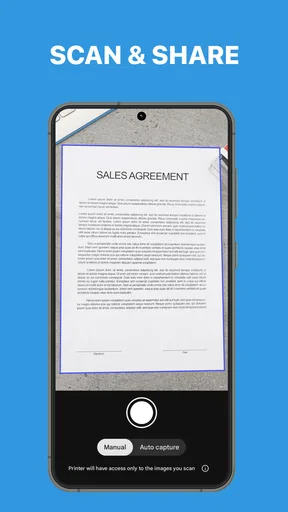
A feature that I didn’t expect but found incredibly useful was the app’s ability to scan documents. Yup, you heard that right. You can scan documents using your phone’s camera and then print them directly from the app. It’s like having a portable scanner and printer combo right in your pocket. This is a game-changer for people who often handle paperwork on the go.
The app also offers a handy print history feature. So if you need to reprint something, you don’t have to go searching for the file again. Just tap on the print history, and you’re good to go. It’s these little things that really enhance the user experience.
Making scans and reprints work harder
The scan-and-print path is especially handy for a receipt, signed page, or school note that exists only on paper. I’d place the sheet on a flat, well-lit surface, frame the edges carefully, and check the result before printing. The useful trade-off is speed: a phone scan can save a trip to a full scanner, but it may not be the right source for tiny text, archival copies, or paperwork where exact image quality matters. In those cases, a dedicated scanner or the original digital file is a safer choice.
Print history is most valuable when the same material comes up repeatedly, such as a household checklist or a form used for several appointments. I’d still keep important originals in a folder or cloud service rather than treating the history as a permanent filing system. A history entry can make a repeat job quick, but organizing the source file separately makes it easier to identify the correct version and avoid printing an outdated copy.
Cost, switching, and practical limits
The app is free to install, and its Everyone age rating makes it suitable for a broad audience. It is developed by Albert Gerassimov, has a 4.0 average from around 117,000 ratings, and has passed five million installs. The current version is 1.3.4, with a minimum operating-system requirement of version 10. In-app purchases range from $3.99 to $49.99 per item, so I’d check what is included and whether it matters to my own routine before spending anything. A basic print need may not justify a purchase; a frequent user should weigh the value against how often the app saves time.
Switching from a printer’s built-in app is not just a download decision. I’d first identify how I currently find files, which printer I use most, and whether I depend on a manufacturer-specific control. Then I’d try one familiar document and one file from a different source, such as a cloud account. That small trial reveals whether the new workflow reduces steps or simply moves the same friction elsewhere. I would keep the old route available until the new one has handled the documents I print most often.
There are also sensible reasons to skip a general mobile printer app. If nearly all printing happens from a desktop, the computer’s established print dialog may be quicker. If a printer’s own utility is needed for setup or troubleshooting, that specialized tool remains important. And if printing is rare, installing another app may add little value. The stronger case is for someone who often has documents on a phone and wants a straightforward route from file to paper.
Final Thoughts
So, what’s the verdict? If you’re looking for a way to ease the stress of printing from your mobile device, Smart Printer: Print Documents is definitely worth checking out. It’s efficient, user-friendly, and packed with features that make printing less of a chore and more of a breeze.
Whether you’re a student needing to print lecture notes or a professional managing documents on the go, this app has you covered. It’s like having a personal assistant that ensures your printing needs are met swiftly and smoothly. So go ahead and give it a whirl—I’m pretty sure you’ll wonder how you ever managed without it.
My recommendation is clearest for people who print often enough to value phone access, preview controls, and an easy way to revisit recent jobs. I’d be more cautious if my work depends on precise page design or printer-specific tools, since a desktop workflow or the printer maker’s own utility may suit those jobs better. For everyday forms, notes, and occasional scans, though, Smart Printer offers a practical middle ground: it can make a common chore easier without pretending to replace every part of a full office setup.
Pros
- User-friendly interface simplifies printing.
- Supports multiple file formats seamlessly.
- Wireless printing saves time and effort.
- High-quality print output.
- Quick setup process.
Cons
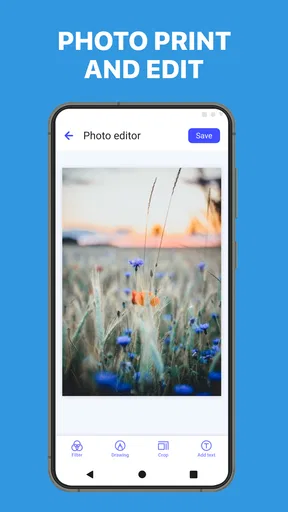
- Limited editing features in the app.
- Occasional connectivity issues.
- In-app purchases can be pricey.
- Requires constant updates for new features.
- Limited support for older printers.
FAQs for Smart Printer: Print Documents
What platforms does Smart Printer: Print Documents support?
Smart Printer: Print Documents is available for both Android and iOS devices. This makes it versatile and accessible for users on different platforms. The app seamlessly integrates with your smartphone or tablet, providing an easy and efficient way to manage and print documents directly from your device.
Can I print documents from cloud storage services using Smart Printer?
Yes, Smart Printer: Print Documents allows you to print directly from various cloud storage services. It supports integration with popular services like Google Drive, Dropbox, and OneDrive, making it convenient to access and print your documents stored in the cloud without needing to download them first.
Is an internet connection required to use Smart Printer: Print Documents?
An internet connection is not always necessary. While accessing cloud storage and downloading updates requires internet, printing can often be done locally via Wi-Fi. Some features, like remote printing, may need internet access, but local network printing does not, providing flexibility based on your needs.
What types of documents can be printed using Smart Printer?
Smart Printer: Print Documents supports a wide range of file types. You can print PDFs, Word documents, Excel spreadsheets, PowerPoint presentations, and various image formats. This versatility ensures that you can handle most of your printing tasks directly from your mobile device without any compatibility issues.
Does Smart Printer: Print Documents offer any security features?
Yes, security is a priority with Smart Printer: Print Documents. The app includes features such as password protection for documents and secure connections to ensure your data remains safe during the printing process. This is particularly important when handling sensitive or confidential information.


